Configuring Setpoints
All setpoints can be configured visually by dragging them with the mouse directly on the card plot. When you mouse over a setpoint, the cursor changes to a hand, allowing you to click and drag it. A setpoint is not sent back to the device until the Send Pumpoff Config command is issued (see Sending Setpoints). Some setpoints can also be configured numerically. Doing this updates the setpoint’s graphical position on the card plot automatically.
POC and MAL Setpoints
The POC (Pumpoff Condition) and MAL (Malfunction) setpoints are each displayed as points within the stroke curve. When the curve deviates such that one of the points is outside of it, a pumpoff condition occurs. The MAL setpoint is represented by a square; the POC setpoint is represented by a circle. As you drag one of these setpoints, its load and position is reflected dynamically in the details panel. You can also mouse over each setpoint to view its load and position in a tooltip. See Configuring Pumpoff for inputting numerical values.
Peak and Minimum Load Setpoints
The peak setpoint and minimum setpoint are displayed as horizontal lines on the card plot. If the stroke falls outside of this region, a pump-off condition occurs. As you drag one of these lines, its load value is updated dynamically in the details panel. You can also mouse over the line to view its load value in a tooltip. See Configuring Pump-Off for inputting numerical values.
Fluid Fill Setpoint
The fluid fill setpoint is a bar displayed only on the surface graph. This feature is supported by Tri-Ener-Tech devices, and is designed to mimic behavior of the fluid fill setpoint on the device panel.
To View the Fluid Fill Setpoint
- On the View menu click Fluid Fill Setpoint or right-click in the graph and select View from the context menu.
To Change the Fluid Fill Setpoint Visually
- Drag the left endpoint to move the entire line up and down. Drag the right endpoint to change the line’s slope.
To Change the Fluid Fill Setpoint Numerically
- Double-click one of the endpoints. The Fluid Fill Setpoint dialog box appears (below).
|
Fluid Fill Setpoint (%) |
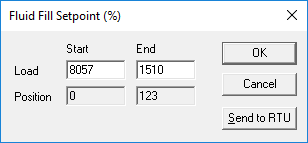
- Enter load (Y) and position (X) values for the Start (left) and End (right) endpoints.
- Click OK to close the dialog box, or Send to RTU to send the configuration to the device immediately. The setpoint line is automatically updated on the graph.

